This article explains how to turn off the Loyalty Lane interface for each point-of-sale (POS) system we integrate with. Use the quick reference to see where the change is made, then follow the steps for that POS.
Quick Reference|
POS System |
Where to Make the Change |
Scope |
|
ISS45 / Encor |
Cashier screen on each lane |
Per lane (re-enables on reboot) |
|
ECRS |
HQ > Maintenance > Advanced Settings |
Store-wide |
|
ACS-IR |
Store server > services.msc > ConnectPOS |
Store-wide |
|
Scanmaster |
System Personalization > Promotions |
Store-wide (all groups) |
|
RORC |
Store Configuration > Miscellaneous Variables |
Store-wide |
|
IBM / ACE (ICR) |
Personalization > User Option 4 |
Per lane (sign out/in) |
Where: Each lane (cashier screen) Scope: Per lane (TEMPORARY SOLUTION)
- On the cashier screen of each lane, enter 969999999900 and press Enter.
Note: The interface turns back on if the lane is rebooted. To turn it back on manually, enter 969999999901 and press Enter.
ECRSWhere: Store server – Headquarters (HQ) Scope: Store-wide
- Open Headquarters (HQ) on the store server and log in to ECRS.
- Go to Maintenance > Advanced Settings.
- Find com.ecrsoft.tserver.genericcoup.name and remove the value Loyalty Lane.
- Find ecrsoft.tserver.genericcoup.url and remove the value https://prod.customers.loyaltylane.com/EcrsApi/api/v1.
- Click Save in the upper-right corner.
Note: To turn the interface back on, re-enter both values above and save.
ACS-IRWhere: Store server – Windows Services Scope: Store-wide
- On the store server, click the Windows icon, type services.msc, and press Enter.
- Find the ConnectPOS service and stop it.
- Right-click ConnectPOS, select Properties, change Startup type from Automatic to Disabled, and click OK.
Note: To turn the interface back on, set Startup type back to Automatic and start the service.
ScanmasterWhere: Store server – Scanmaster Scope: Store-wide
- Open Scanmaster on the server and sign in.
- Go to System Personalization > Promotions tab.
- Set Enable Universal Marketing Interface to No.
- Save for all groups.
Note: To turn the interface back on, set Enable Universal Marketing Interface to Yes and save for all groups.
RORCWhere: RORC server – Miscellaneous Variables Scope: Store-wide
- On the RORC server, go to Main Menu > Utilities > Store Configuration > Miscellaneous Variables.
- Expand Two-Way Interface and select Enable Two-Way Interface (TWOWAY.ENABLED).
- On the Details tab, uncheck Enable Two-Way Interface and save.
Note: Unchecked = interface off. Checked = interface on.
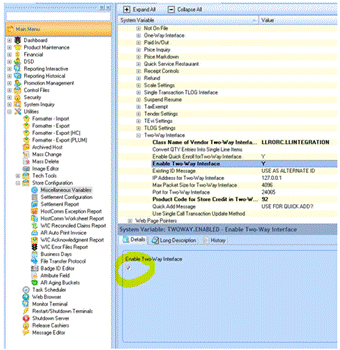
RORC Miscellaneous Variables – Enable Two-Way Interface checkbox (circled)
IBM / ACE (ICR Integration)Where: Each lane – Personalization Scope: Per lane
- In Personalization, uncheck User Option 4 and save your settings.
- Sign out of the lane and sign back in for the change to take effect.
- There are now various integrations created by Truno (Homeland, HAC Cashsaver, HAC United) snd ICR (Ramseys) which will be shut off differently. I will update this article when I have those procedures.
Note: To turn the interface back on, check User Option 4, save, and sign out and back in.